
How to watch series, seasons and episodes
Pick up where you left off, change season, and let the next episode start by itself.
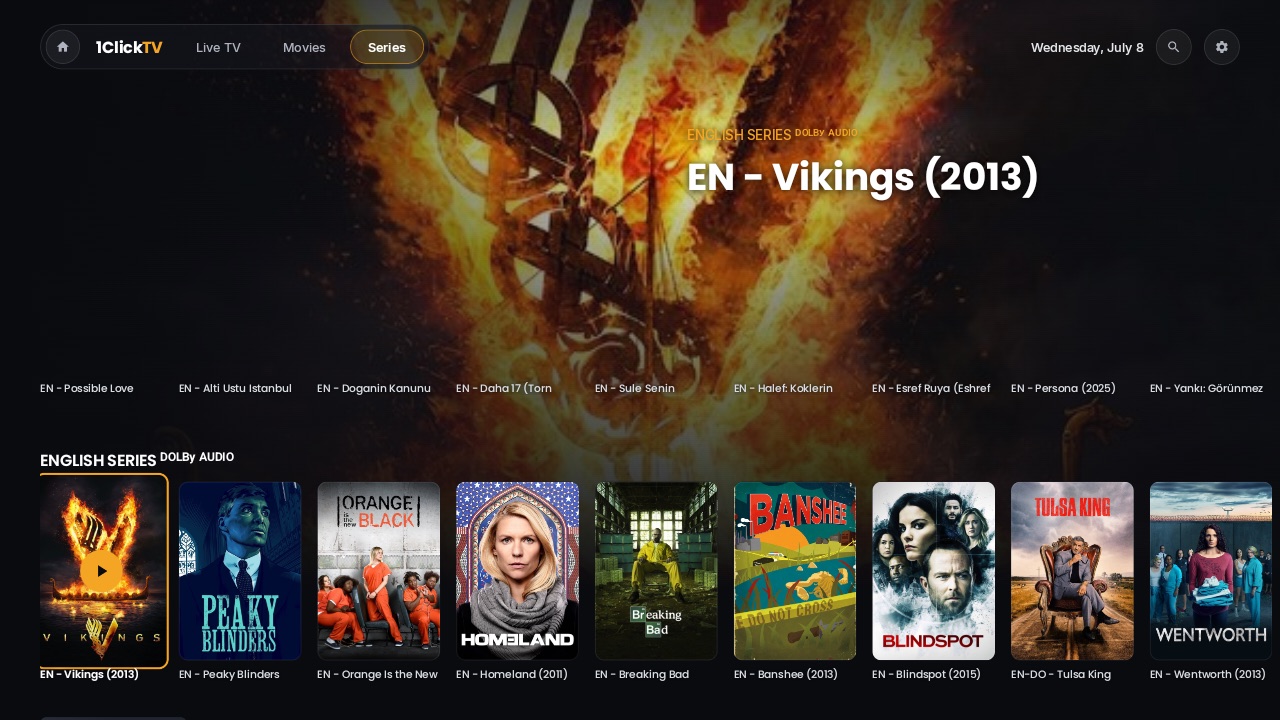
Step by step
- 1
Open a series
On Home, press OK on the Series card, then OK on a poster.
- 2
Resume or start
The first button says “Resume · S2:E5” when you are in the middle of an episode, or “Play · S1:E1”. “Start Over” plays that episode from the beginning.
- 3
Change season
Go down to the season chips, highlight “Season 2” and press OK. The episodes of that season appear below.
- 4
Play any episode
Highlight an episode card — it shows its number, length and how much you watched — and press OK.
- 5
Let it continue
15 seconds before the end a “NEXT EPISODE” card counts down. Press OK on “Play now” to start it at once, or BACK to watch the credits instead. The next episode also crosses into the next season.
Tips & tricks
- After three episodes in a row without touching the remote, the app asks “Still watching?” — so it never plays all night for nobody.
- Turn the countdown off in Settings › Player › “Autoplay next episode”.
- “New episodes for you” at the top of Series lists your favourite and in-progress series that got a new episode.
Related guides
Reminder: 1ClickTV Player is a media player — bring your own authorized IPTV playlist or provider.