
Find your way around Home
What every card, button and icon on Home does.
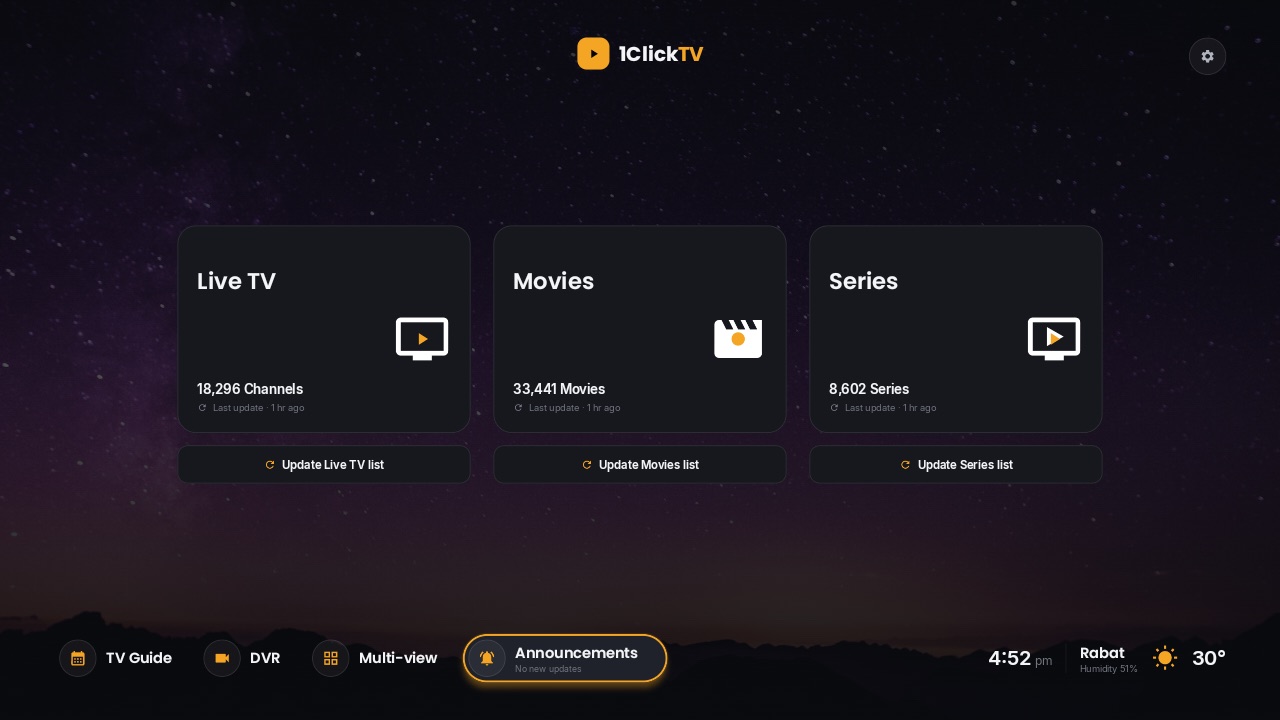
Step by step
- 1
The three sections
Live TV, Movies and Series, with how many channels or titles you have. Press OK to open one.
- 2
Update a section
Under each card, “Update Live TV list” (and the Movies / Series ones) refresh that section in the background while you keep using the app.
- 3
The shortcuts row
At the bottom: TV Guide, DVR, Multi-view, Downloads and Announcements.
- 4
Profile and Settings
At the top right: your profile picture (press OK to switch profile) and the gear for Settings.
- 5
Messages
A banner above the cards appears when there is something for you — for example no internet (with “Open Downloads”) or, for OneClickTV customers, a subscription that ends soon. Press ▲ from the cards to reach it.
Tips & tricks
- BACK on Home puts the app in the background without closing it.
- By default the app reopens on the screen you left — even the channel you were watching. Turn it off in Settings › Appearance › “Resume last screen on start”.
Related guides
Reminder: 1ClickTV Player is a media player — bring your own authorized IPTV playlist or provider.