
The player on a phone: channels, full screen, audio and subtitles
Tap the video for the controls; the tiles under it do the rest.
Step by step
- 1
Show the controls
Tap the video. The controls hide by themselves after 4 seconds while playing.
- 2
Change channel
Use ‹ and › on the video. They move through the list you started from — open a channel from the “Channels” tile, the Favorites strip or TV Guide “Watch now” to zap through that list.
- 3
Use the tiles
Under the video: “Channels” (pick from the current list, favourites or a category), “Favorite”, “Record” and “Full screen”.
- 4
Plan ahead
Scroll down to “Tonight on …” and tap a programme to record it or set a reminder.
- 5
Movies and episodes
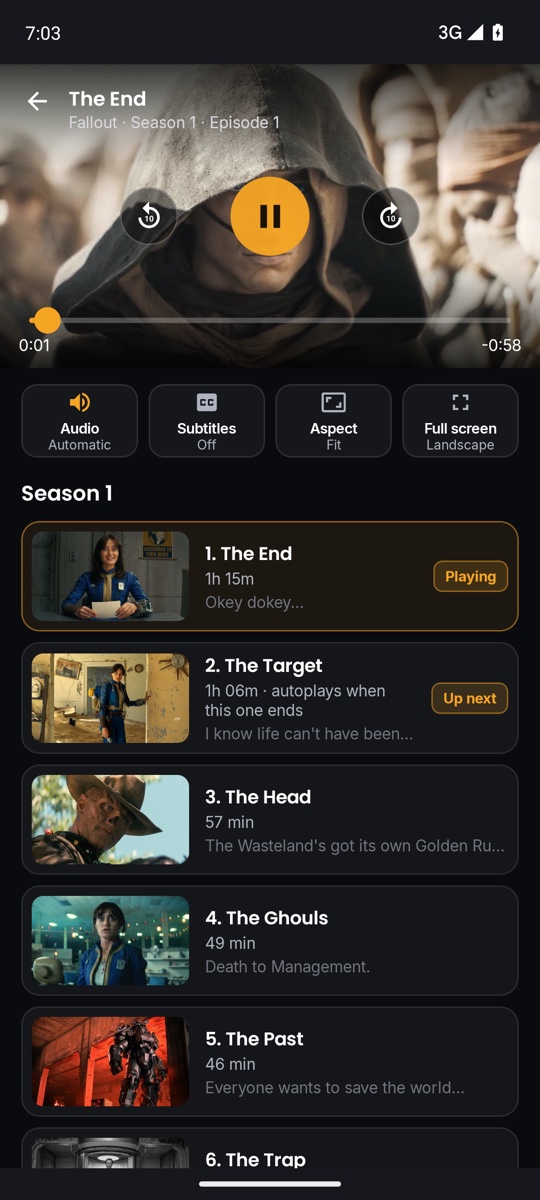
Skip 10 seconds with the buttons beside Play, or drag the progress bar. The tiles become Audio, Subtitles, Aspect (Fit → Zoom → Fill) and Full screen. Episodes of the season are listed below, with “Up next”.
Tips & tricks
- Use the Full screen tile rather than turning the phone: it rotates to landscape and keeps the buttons on screen.
- “Record” while a programme is on records the channel for up to 3 hours — stop it yourself in Recordings when you are done.
- Playback pauses when you leave the app.
Related guides
Reminder: 1ClickTV Player is a media player — bring your own authorized IPTV playlist or provider.